This site
Summary
Anyone can create a website - the only tool strictly required is a text editor. If someone is willing to put in the effort, the knowledge is very well documented out there. In this page I will guide you through the sources I used to learn how to build this site and all the programs-tools I used. Keep in mind I had no knowledge on web development and it took me about 2 months to learn and develop this website.
Website anatomy
A website like this one is made from three languages: HTML, CSS and JavaScript. HTML is used to specify containers for content such as text, photos, links etc. and write text in them. CSS is then used on top of the HTML code to specify styling such as fonts, colors, borders and positioning for each element. Last but not least, JavaScript helps make the page more interactive - through JavaScript any page element can be altered based on any user input. A beautiful, well working website can be written without ever having to use JavaScript.
Having previous knowledge with any other programming language will help immensely in understanding JavaScript. HTML and CSS are not exactly programming languages and are easier to grasp.
Hello world
Writing a "Hello world!" site is as easy as creating a .txt file, renaming the file to "(use any name here).html", opening the file with a text editor, writing "Hello world!" and then saving it. Here is what such a file looks like when opened with a web browser --> helloWorld.html.
Now if instead of writing just "Hello world!" the file reads "<h1>Hello world!</h1>" the resulting website would look like this --> helloWorld2.html. The HTML markup code indicates that the text is an h1 headline so the font has changed and is now bigger in size.
Changing the color can be done by using CSS. This time there are two lines of code in the HTML text file. On the first line a CSS command indicates that all h1 headlines should be blue: "<style>h1{color: blue;}</style>". The second line of code is the same line that was used before: "<h1>Hello world!</h1>". Opening the file in a web browser now results in --> helloWorld3.html.
Source for learning
A good place to start is a website called w3schools (w3schools.com). Their tutorials are packed with important knowledge for getting started and are well written. There are also exercises and an online platform for messing around with code. I suggest starting with their HTML tutorials and then heading over to CSS. Learning Javascript can be omitted unless one plans to implement a custom audio player or a sortable grid of content or any other interactive element.
Text editor
A text editor is necessary for typing code. Although an entire site could be written using Windows' notepad, it is not the best choice. Today there are smarter text editors designed to make coding faster and more efficient. Modern text editors will help by marking your code, autofill code, guess what you want to write, auto format your code and more. One of the most famous editors today is Virtual Studio Code, it is available for free and is easy to use. This text editor has a big community behind it and a number of extensions available to make programming easier. Here is a list of extensions I use with VS Code for writing HTML, CSS and JavaScript:
- HTML CSS support - Code suggestions/autofill
- Auto Rename Tag - Helps rename html start and end tags simultaneously
- Bracket Pair Colorizer 2 - Colorizes bracket pairs (duh!)
- Prettier - Code formatter
- Live Server - Lets you open the page you are editing and have it change live, every time you change the code (very helpful)
- Indent rainbow - Helps visualize the code indents
- Code Spell Checker - Checks spelling for the English language
Versioning
When taking over a large programming project such as building a website, using a versioning program is highly recommended. A versioning program helps keep track of all the changes in the code and why they are made. It helps keep a very analytical history of a project's progress. It also gives the advantage of being able to rollback to previous versions which is invaluable if someone ever regrets changes that have been made.
Git is the most used versioning program nowadays (Apr 2021). By default it is terminal based - it has no graphical user interface and is operated via a terminal. There are also programs such as GitKraken designed to offer a graphical user interface for Git.
Inspecting
A webpage's code and files can be inspected by right clicking on it and selecting "inspect". In the inspect menu there is the page's HTML, the active CSS styling rules on each page element and any JavaScript program that runs on the page. This is very useful because it lets you:
- Inspect your own page to better understand how your code behaves
- Inspect your favorite web page to get inspired by how it is coded and have a good example in mind
- Use the JavaScript Debugger to understand, tune and correct your JavaScript code
Try right clicking on the first paragraph of this site and then press "inspect". This is what should appear:
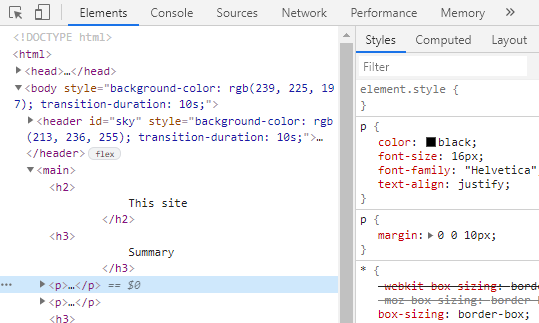
On the left side there is the site's HTML and the paragraph you selected is highlighted. Under the Styles tab all the CSS rules that affect the selected paragraph are visible (font, color etc.). On the Sources tab, all the files that make up the page are available and that includes the JavaScript files:
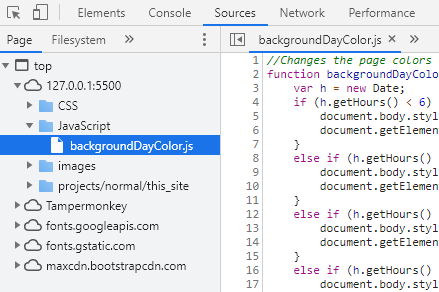
A debugger is available after clicking onto a JavaScript file. It lets the user set break points, watch all available variables and step through the code.
Hosting
After writing a website all that remains is making it available on the internet. A website can be hosted from a personal computer and network or it can be hosted using a or paid hosting provider. Some hosting provider also offer free plan options. For instance, netlify offers a great free hosting plan. The limitations of hosting on personal networks are the network's speed and the fact that the personal computer must be busy all the time. Other than that, hosting from a PC is a good way to get some first impressions and it is free and easy to setup. Hosting alone is enough to make a website available on the internet. Anyone will be able to visit the website by entering the server's public IP address in a browser's URL bar.
Domain name
Associating a name to the server's IP address is a good idea because a name is easier to remember and share with people. After doing so, anyone who types the domain name in the URL bar, will be redirected to the chosen server's public IP. Some providers such as noip.com offer basic domain names for free. Alternatively, a more formal name with a .com or .org extension can be purchased from a provider such as GoDaddy or Namecheap.
In conclusion
Learning how to develop a website is not hard! Just head over to w3schools.com and read their tutorials on HTML, CSS and JavaScript. Use Virtual Studio Code as a text editor and consider using a versioning program such as Git to keep track of your progress. "Right click --> Inspect" is a great tool for understanding how the code translates to site elements.